Home

ALYF Banking is a seamless solution for connecting your bank accounts with ERPNext.
This app is designed to simplify your financial management by effortlessly fetching transactions from thousands of banks and integrating them directly into your ERPNext system. Say goodbye to manual data entry and time-consuming reconciliations ✨
Experience the ease of automation and gain better control over your finances with the ultimate banking integration app for ERPNext users.
Note: Our improved Bank Reconciliation Tool is free to use and compatible with other bank integrations. To connect your bank account, you'll need a paid subscription. Visit banking.alyf.de to check out the pricing and sign up.
- Country and Bank Coverage
- Installation
- Getting Started
- Fetching a Bank and Bank Accounts
- Fetching Bank Transactions
- Bank Consent (Important)
Currently, we support more than 15.000 banks from the following countries.
- 🇦🇹 Austria
- 🇧🇪 Belgium
- 🇭🇷 Croatia
- 🇨🇿 Czech Republic
- 🇩🇰 Denmark
- 🇪🇪 Estonia
- 🇫🇮 Finland
- 🇫🇷 France
- 🇩🇪 Germany
- 🇭🇺 Hungary
- 🇮🇪 Ireland
- 🇮🇹 Italy
- 🇱🇻 Latvia
- 🇱🇹 Lithuania
- 🇱🇺 Luxembourg
- 🇲🇹 Malta
- 🇳🇱 Netherlands
- 🇳🇴 Norway
- 🇵🇱 Poland
- 🇵🇹 Portugal
- 🇷🇴 Romania
- 🇸🇰 Slovakia
- 🇪🇸 Spain
- 🇸🇪 Sweden
- 🇨🇭 Switzerland
- 🇬🇧 United Kingdom
Install via Frappe Cloud or on your local bench:
bench get-app https://github.com/alyf-de/banking.git
bench --site <sitename> install-app bankingBefore using the tool, consider setting up "Automatic Party Matching" to improve the reconciliation experience. Please go through the link to determine if this benefits your organisation.
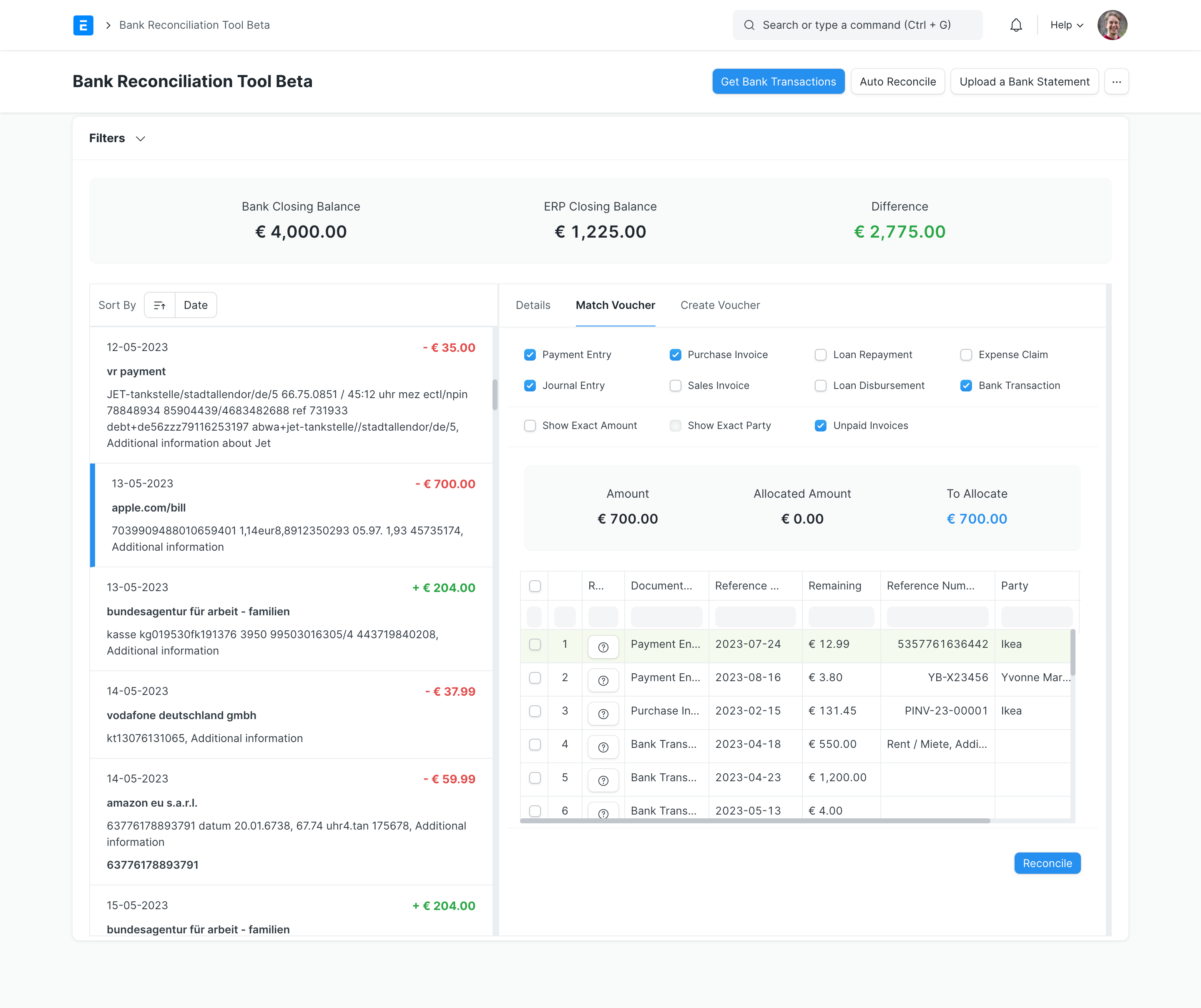
Once all your Bank Transactions are synced into ERPNext, you can reconcile them with your existing vouchers. On your workspace sidebar, go to:
Accounting > ALYF Banking > Bank Reconciliation
Or simply search for Bank Reconciliation Tool Beta in the awesomebar.
- Select a Company and Bank Account
- Make sure that the opening balance from ERPNext matches the opening balance of your Bank Statement.
- Enter the Closing Balance of the Bank Statement.
- Enter the date range to fetch unreconciled bank transactions
Once all the filters are set click on Get Bank Transactions.
You will now see the Bank Transactions on your left and the actions to perform on each transaction on your right.
The Transactions can be sorted based on various parameters. To proceed click on any Bank Transaction entry and perform any of the following actions:
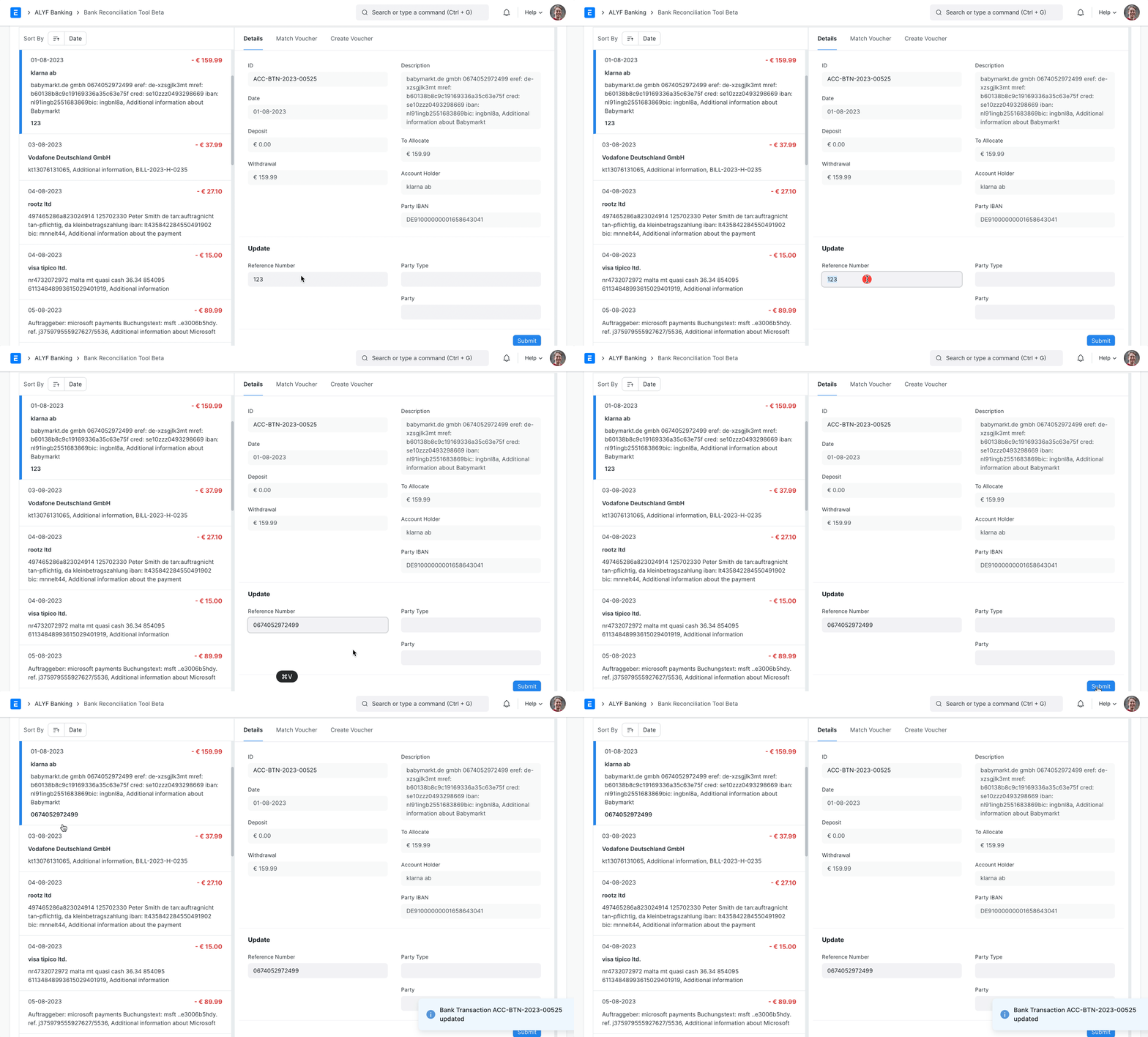
You can update the Reference Number, Party and Party Type of a Bank Transaction or refer to it from the Details tab.
Simply fill in the fields in the 'Update' section and click on Submit at the bottom of the panel.
You can determine which vouchers you want to match against your Bank Transaction by checking the right filters within the Match Voucher tab.
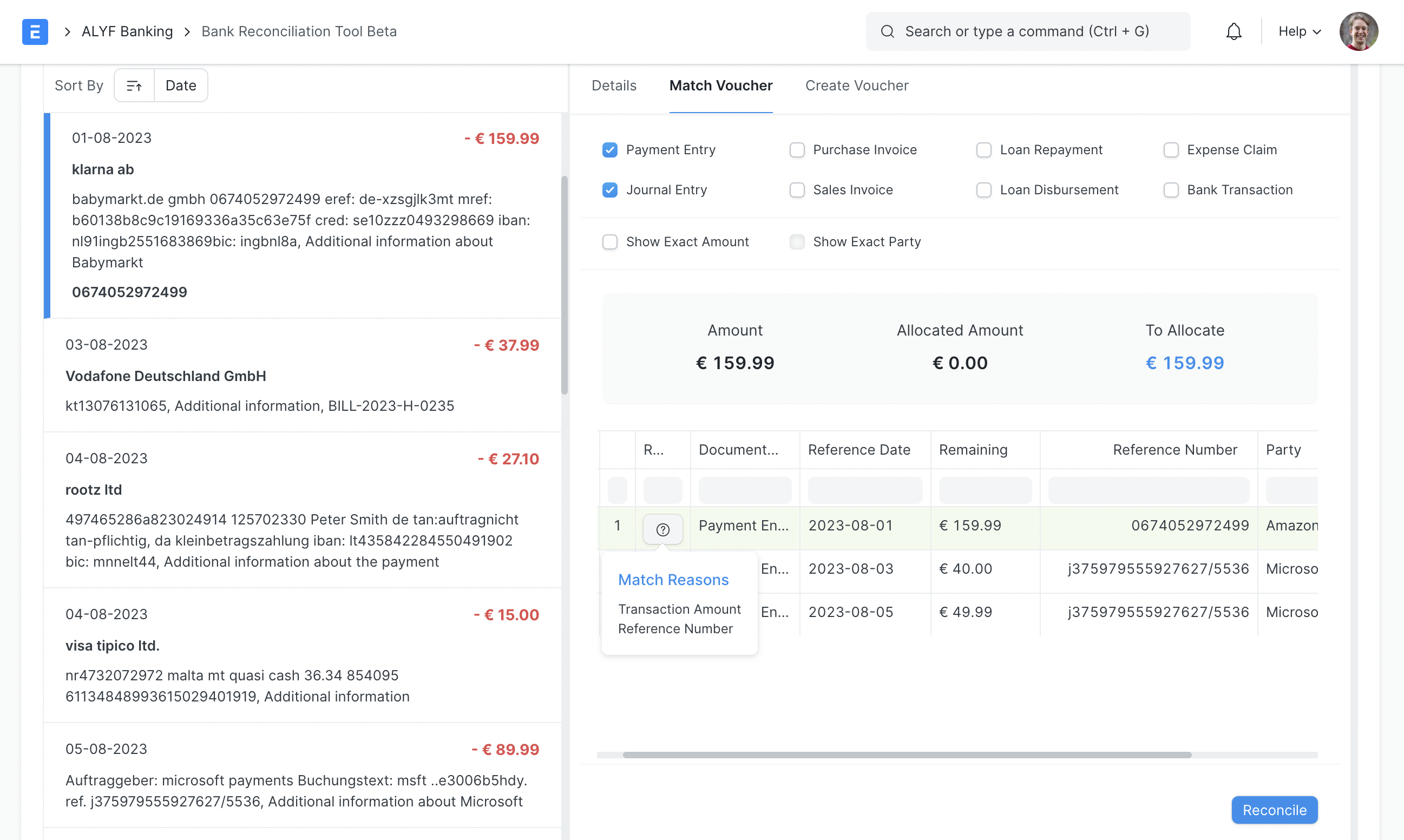
In the filters:
- Purchase Invoice: Fetches Purchase Invoices that have Is Paid checked. These are invoices that complete the payment cycle within the invoice itself (i.e. without a Payment Entry or Journal Entry against them).
- Sales Invoice: Fetches Sales Invoices against POS Invoices. Such Sales Invoices complete the accounting cycle themselves (i.e. without a Payment Entry or Journal Entry against them).
- Bank Transaction: Fetches Bank Transactions with the opposite impact as there might be a refund transaction.
- Show Exact Party: Is enabled and visible only if the Bank Transaction has a Party & Party Type set.
- Unpaid Invoices: Is visible only if 'Purchase Invoice' or 'Sales Invoice' is enabled. It fetches unpaid invoices for reconciliation.
The rest of the filters are self-explanatory.
The vouchers will be ranked on the basis of the number of fields matched. The match reason is visible on hovering over the '?' button.
You can match one or multiple vouchers against the same Bank Transaction using the checkboxes.
On checking a voucher row: The summary in the Match Voucher tab is updated. The checked rows sum up to the Allocated Amount and To Allocate shows how much in the Bank Transaction is left to reconcile.
Finally, after checking the desired rows, click on the Reconcile at the bottom of the panel.
- If the transaction is fully reconciled, it will be removed and the next transaction will be auto-focused.
- If the transaction is partially reconciled, the view stays the same except the Allocated Amount will be permanently updated. Now you can continue to finish reconciling this transaction or move on to another one.
The tool helps you reconcile with unpaid invoices by automatically creating a payment against the invoice and reconciling said payment against the Bank Transaction.
If there are no matching vouchers against your Bank Transaction you can also create a Payment Entry or Journal Entry against it.
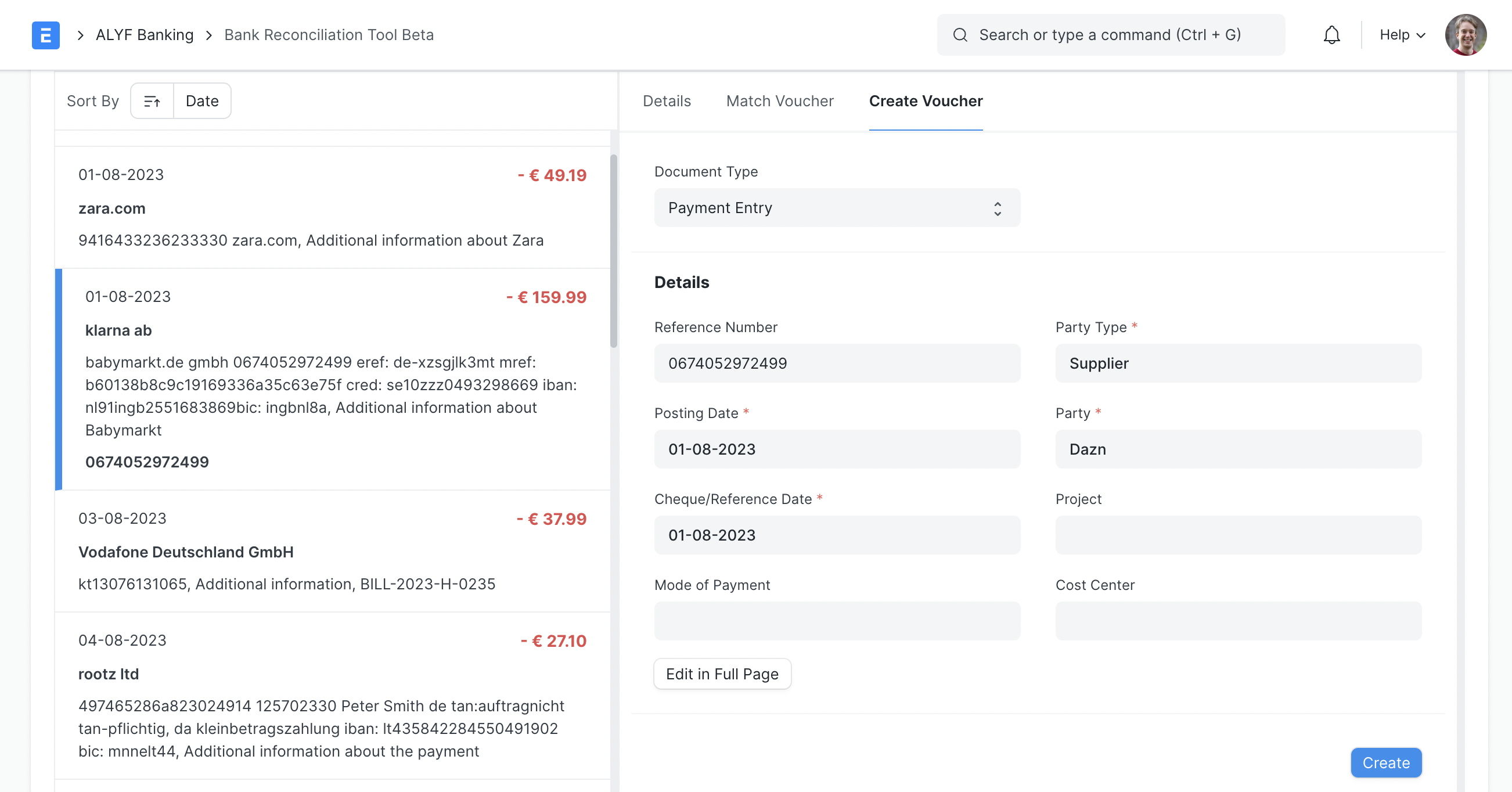
- Go to the Create Voucher tab
- Fill in any mandatory or otherwise missing details
- Click on Create at the bottom of the panel.
A voucher will be automatically created, submitted and fully reconciled against the current Bank Transaction.
If you want to edit more details in the voucher to be created, you can click on Edit in Full Page and you will be redirected to the voucher in the Draft state. You can edit this voucher and submit it.
The Auto Reconcile button at the very top of the tool automatically reconciles Bank Transactions and vouchers that have matching reference numbers.
The reconciliation will occur within the limits of the account and date filters that are set.