Palette Insight Agent can only be installed with system administrator privileges
In order to install the Insight Agent you need a unique identifier which is a standard GUID. You can generate one e.g. at https://www.guidgenerator.com.
You need to make sure that the Insight Agent is able to query data from the Tableau repository. The easiest way to achieve that is to enable readonly user in your Tableau Server. You may find the guide how to enable the readonly user on the Tableau website.
The Insight Agent can automatically collect the readonly user's password from the workgroup.yml file of Tableau Server.
The necessary tabadmin command is:
tabadmin dbpass --username readonly p@sswordTo enable the readonly user use the tsm command:
tsm data-access repository-access enable --repository-username readonly --repository-password p@sswordYou will need to enter the credentials of the user into the Config/Config.yml.
This is required even if the readonly user is enabled. This should be done on those machines where the active and passive Tableau Repositories are.
Example:
TableauRepo:
 Host: localhost
 Port: 8060
 Database: workgroup
 User: readonly
Password: p@sswordThe installation package contains the Palette Insight Agent service and also a Palette Insight Watchdog service, which is to make sure that the Palette Insight Agent service is running all the time.
During the installation you will need two things:
- The Insight License Key is the GUID you generated before and which was entered to Insight Server’s config file (
/etc/palette-insight-server/server.config) as thelicense_keyvalue. - The IP address or the hostname of the Insight Server machine (
https://prefix is required)
And you will have to enter them into this install dialog:
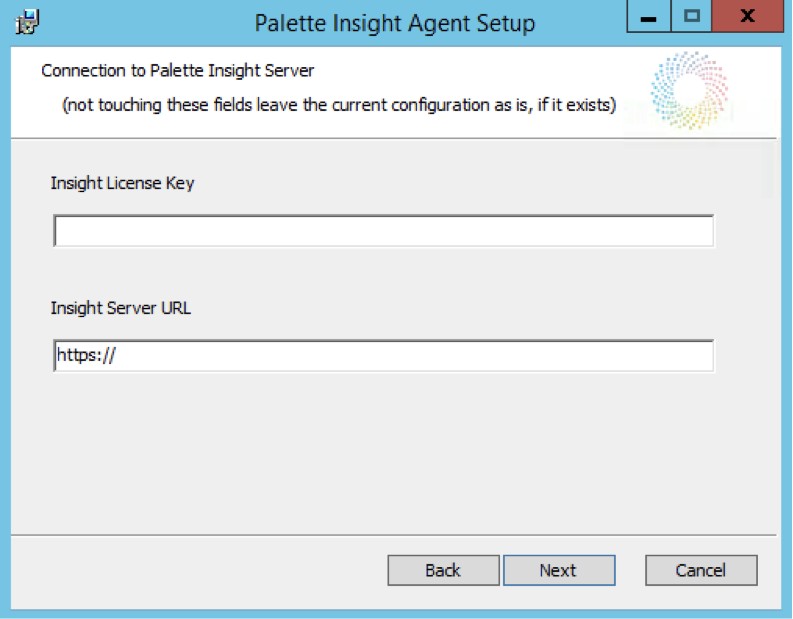
If you leave the fields in this installer dialog as is (i.e. blank field for Insight License Key and https:// for Insight Server URL), then the values entered into this fields of previous installations will remain in place. You can check these values in <Palette_Insight_Agent_install_dir>\Config\Config.yml file.
Settings can be manually edited in Config/Config.yml
- Proxy configurations have to be placed under the
Webservicekey - In case
readonlyuser is not enabled in your Tableau Server, you need to provide Tableau repo credentials manually under theTableauRepokey