

Quickly copy file paths with selected line ranges in formats optimized for AI coding agents (Claude Code, Gemini CLI, etc.) and IDE navigation. Perfect for sharing code references in prompts, documentation, or team communication.
- Coding Agent Format: Multi-line selections use
@path#L<start>-<end>format - IDE Format: Single-line selections use
path:<line>format for IDE compatibility - Keyboard Shortcuts: Quick copy with
Alt+O, view history withAlt+Shift+O - Copy History: Session-based history of recent copies (last 20 items)
- Quick Navigation: Select from history to jump to any previously copied location
- Smart Paths:
- Relative Paths: Automatically uses workspace-relative paths for files inside the workspace
- Absolute Paths: Fallback to full absolute paths for files outside the workspace
- Cross-Platform: Normalizes path separators for consistency
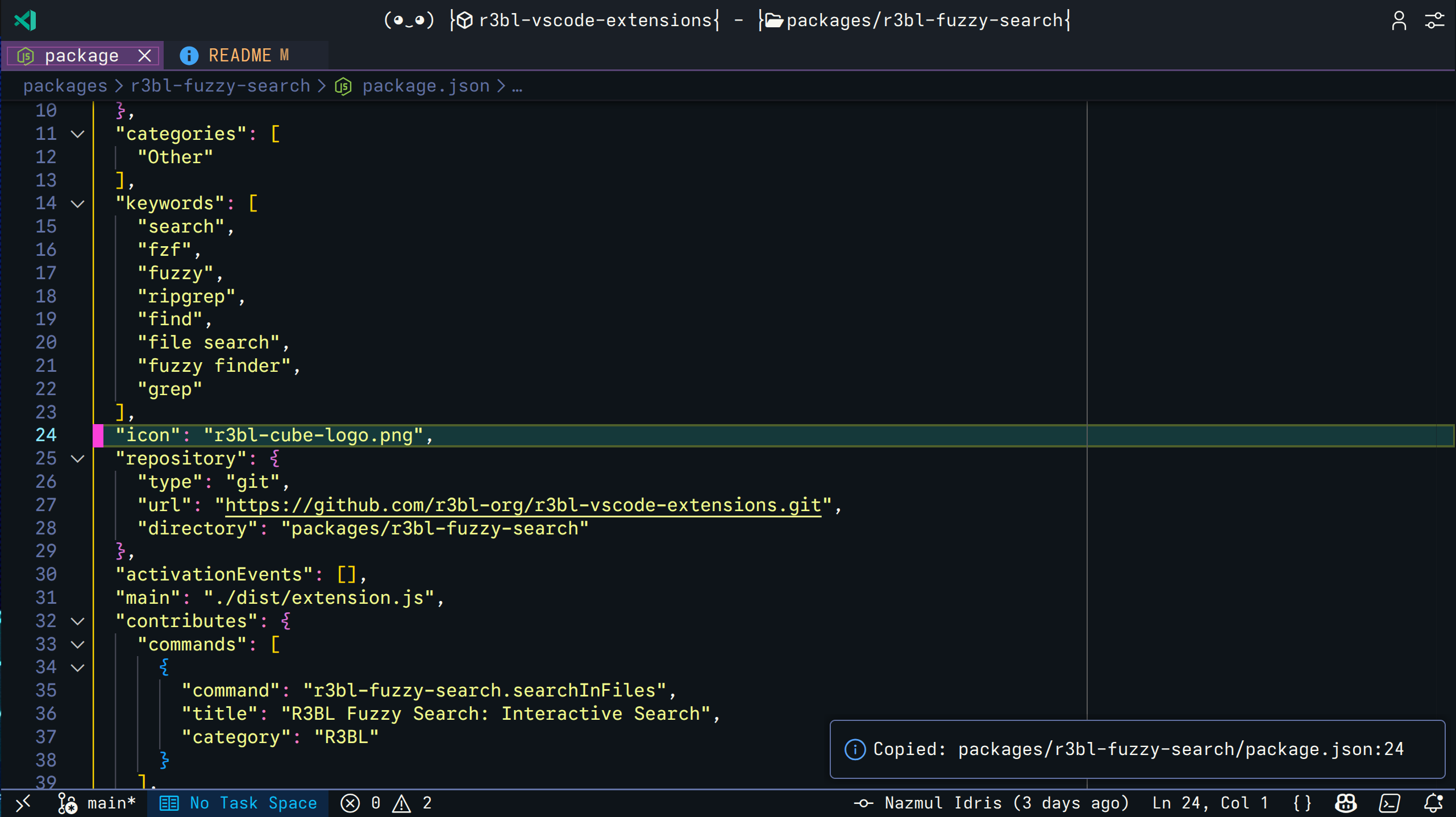 Single-line selection with auto-dismissing notification
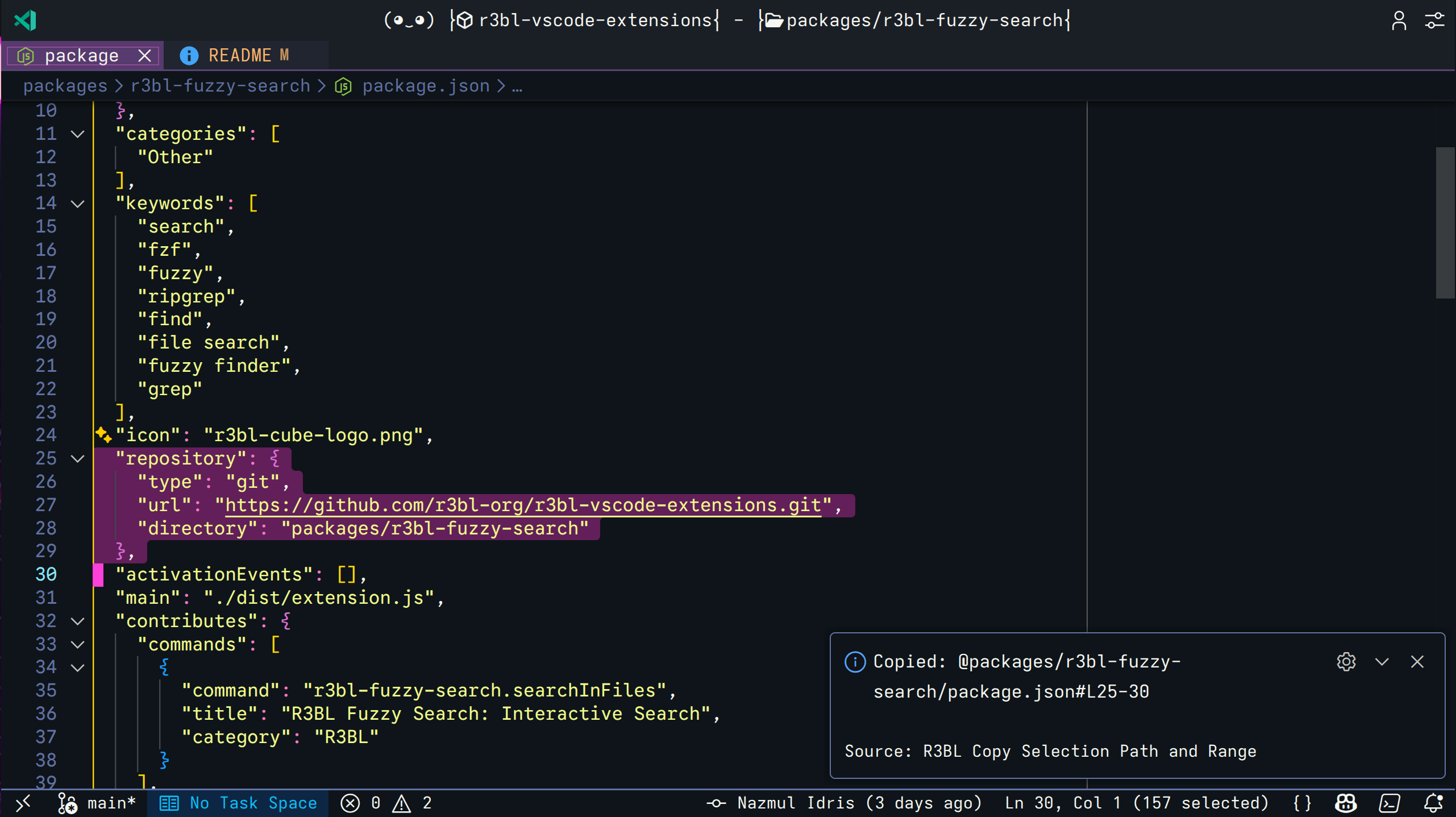 Multi-line selection in Coding Agent format with @ prefix
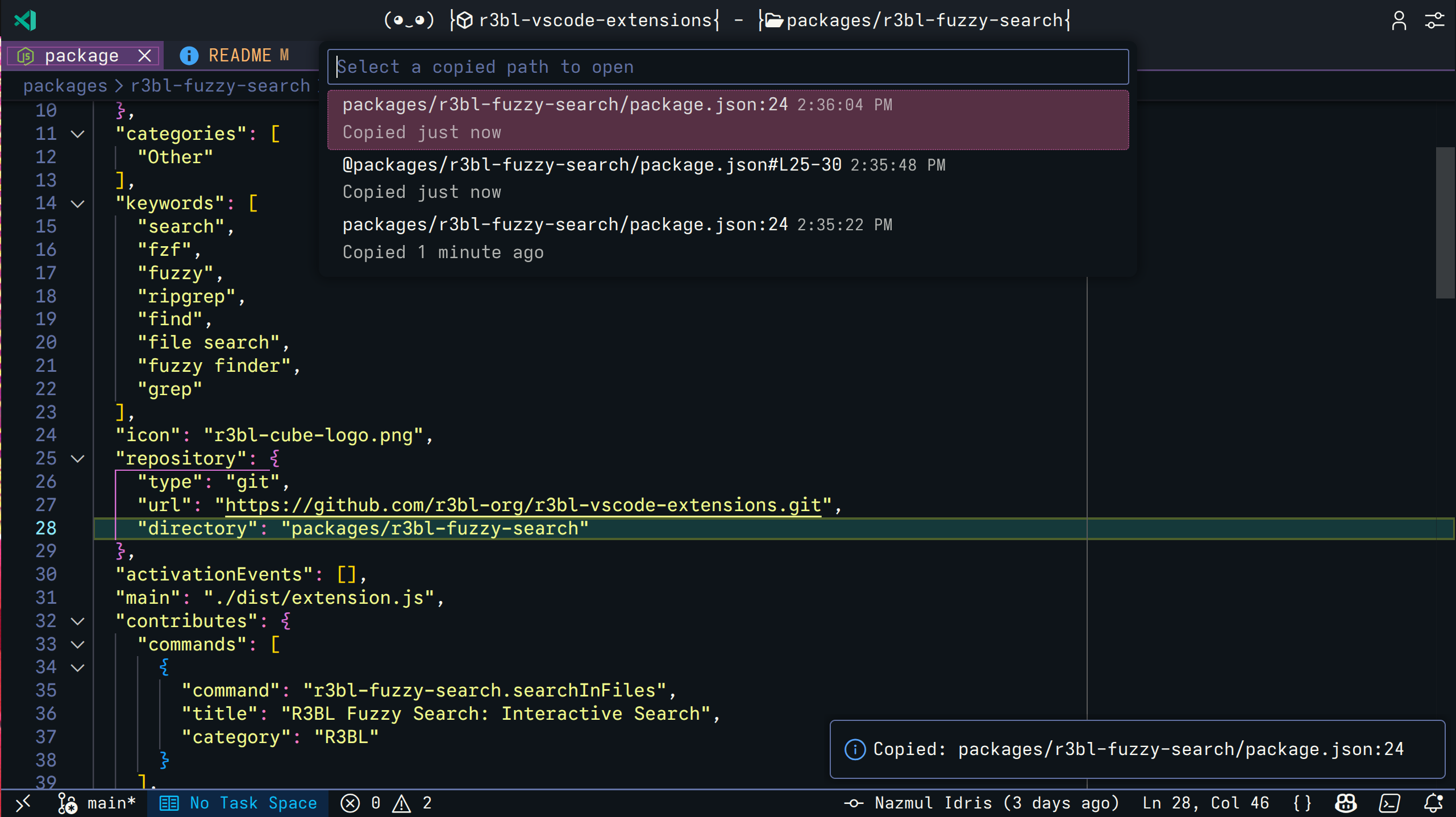 Copy history (Alt+Shift+O) showing recent copies with timestamps
The extension automatically chooses the best format based on your selection:
When you select multiple lines, the output includes an @ prefix for Coding Agents:
@packages/r3bl-copy-selection-path-and-range/src/extension.ts#L6-14
This format is optimized for use in Coding Agent prompts (Claude Code, Gemini CLI, etc.)
where the @ symbol tells the agent to reference that specific file and line range.
When you have a single line selected or cursor on a line:
packages/r3bl-copy-selection-path-and-range/src/extension.ts:6
This format is compatible with most IDEs and terminals that support file:line
navigation.
When you copy a path for a file outside of the VS Code workspace, the extension provides the full absolute path:
@/home/user/Downloads/script.py#L10-25
It still maintains the @ prefix and line range formatting for consistency.
- VS Code 1.95.0 or higher
- Select lines in your editor (or just place cursor on a line)
- Press
Alt+O - Path with line range is copied to clipboard
- Notification shows what was copied (auto-dismisses)
- Press
Alt+Shift+Oto open copy history - Browse your recent copies (up to 20 items)
- Select any item to jump to that file and line range
- History shows relative timestamps ("just now", "5 minutes ago", etc.)
- Open Command Palette (
Ctrl+Shift+PorCmd+Shift+P) - Type "Copy File Path with Selection Range" or "Show Copy History"
- Press Enter
Share specific code sections in your prompts:
Can you review the error handling in @src/services/api.ts#L45-67?
The Coding Agent will automatically reference that exact section of your code.
Share precise locations with team members:
Please check the logic in src/utils/parser.ts:123
Reference specific implementations in your docs:
See the authentication flow in @src/auth/oauth.ts#L15-42
Link to exact code locations in bug reports:
The bug occurs in src/components/Form.tsx:89
R3BL: Copy File Path with Selection Range- Copy the current file path with selection range to clipboardR3BL: Show Copy History- Show history of recently copied paths and navigate to any location
| Shortcut | Command | When |
|---|---|---|
Alt+O |
Copy File Path with Selection Range | Editor has focus |
Alt+Shift+O |
Show Copy History | Always |
You can customize these shortcuts in VS Code's Keyboard Shortcuts settings.
- Path Calculation:
- Gets relative path from workspace root if file is inside workspace
- Falls back to full absolute path if file is outside workspace
- Line Detection: Determines if selection spans multiple lines
- Format Selection:
- Multi-line → Coding Agent format with
@prefix - Single-line → IDE format
- Multi-line → Coding Agent format with
- Clipboard: Copies formatted string
- History Storage: Adds to in-memory session history (last 20 items)
- Notification: Shows confirmation (auto-dismisses)
- Stored in memory (session-only, cleared on reload)
- Keeps last 20 copied items
- Shows file path, line range, and relative timestamp
- Quick pick interface for easy navigation
- Press
Alt+Shift+Oto access anytime
This extension uses the R3BL Shared extension for centralized services across all R3BL extensions (message queuing, global configuration, and more).
See the R3BL Shared documentation for available services, API usage, and configuration options.
See CHANGELOG.md for detailed release notes and version history.
MIT
Found a bug or have a feature suggestion? Please open an issue at: https://github.com/r3bl-org/r3bl-vscode-extensions/issues
Copy and share context with Coding Agents effortlessly!