
NcPasswords is a simple Windows app for browsing your Nextcloud Passwords entries without opening a browser. You sign in once, and can then look up, search and copy your saved logins straight from the desktop.
Disclaimer: This project was originally created to serve my own personal needs. It is shared here as open source in the hope that others may find it useful as well.
Disclaimer: This project - including parts of its code and documentation - was built with the help of Claude (Anthropic's AI coding assistant). It hasn't been reviewed by a third-party security audit. As with any tool that handles your passwords, please use your own judgment, especially if you're storing sensitive accounts.
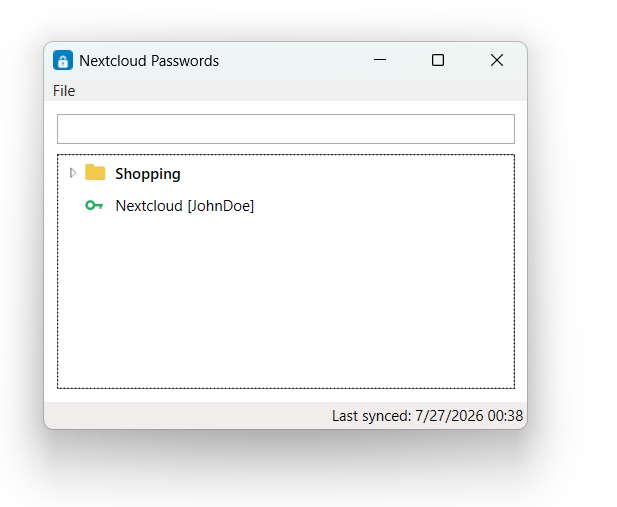
- Sign in with your Nextcloud server address, username and password (use an app password instead if you have two-factor authentication turned on).
- Your login details are stored securely on your own PC, encrypted so only your Windows user account can read them.
- Optional: set an additional local password at sign-in to require it every time NcPasswords starts. Without one, anything running under your Windows account can decrypt the saved data the same way NcPasswords does; with one, decrypting it also requires that password, which is never itself written to disk. See Local password protection below.
- Your passwords are saved locally so the app still works if you're offline, and refresh automatically each time you open it.
- Folders and entries appear together in one simple list, similar to the layout used by the well-known Password Safe app. Each entry just shows its name and username; everything else (address, notes, tags, etc.) is a click away in the details view.
- Double-click an entry to copy its password, or select it and press
Ctrl+Cto copy its username. Whatever you copy is automatically cleared from your clipboard after 30 seconds. Right-click an entry for the same options, plus "Details...". - Type in the search box to instantly filter down to matching entries.
- Closing the window doesn't quit the app - it keeps running in the system tray so it's ready the next time you need a password. Right-click the tray icon and choose "Exit" if you want to close it fully.
Note: NcPasswords only works with accounts using Nextcloud's default encryption. If your account has client-side encryption turned on, you'll see a clear message explaining that it isn't supported.
Everything NcPasswords stores on disk (your Nextcloud login and the cached entries) is encrypted with Windows' own per-user encryption (DPAPI). That protects it from other Windows accounts and from anyone who copies the files off your PC - but on its own, DPAPI doesn't protect it from other processes running under your Windows account. Any app you run - malware included - can ask Windows to decrypt the same data, the same way NcPasswords does, without needing to know anything about NcPasswords itself.
To close that gap, you can set an additional local password in the "Additional local password (optional)" field when you sign in. If you set one:
- NcPasswords asks for it every time it starts, before it will show any of your saved data.
- The password itself is never written to disk - only a random, non-secret salt used to derive a key from it.
- That derived key is required, together with your Windows account's own DPAPI key, to decrypt the stored data - so another process running as you can no longer read it without also knowing your password.
Leaving the field blank keeps the previous behavior (DPAPI protection only). Signing out clears this setting along with everything else, so you're asked to set it again (or not) the next time you sign in.
- Installer: download
NcPasswords-Setup-<version>.exefrom the latest release and run it. It installs just for your own account, so you don't need administrator rights, and adds a shortcut to your Start Menu (and optionally your desktop). - Portable version: if you'd rather not install anything, download
NcPasswords-<version>-win-x64.zipfrom the same page, unzip it, and runNcPasswords.exedirectly.
Since the app isn't digitally signed, Windows may show a blue "unknown publisher" warning the first time you run it. This is expected - click "More info" and then "Run anyway" to continue.
src/NcPasswords.Core- API client, models, local cache and credential storage (no WPF dependency).src/NcPasswords.App- the WPF user interface (MVVM via CommunityToolkit.Mvvm).tests/NcPasswords.Core.Tests- unit tests for the API client, cache, folder tree and search.installer/- the Inno Setup script used to build the installer.docs/- the source for the project's one-page website (GitHub Pages, once enabled under Settings → Pages → Deploy from branch →main/docs).
Build and run from source with:
dotnet build NcPasswords.slnx
dotnet test tests/NcPasswords.Core.Tests/NcPasswords.Core.Tests.csproj
dotnet run --project src/NcPasswords.App/NcPasswords.App.csproj
Releases are built manually via the Release GitHub Actions workflow (workflow_dispatch), which publishes a
self-contained win-x64 build and attaches two files to a new GitHub release:
NcPasswords-<version>-win-x64.zip- the raw published files (portable).NcPasswords-Setup-<version>.exe- the Inno Setup installer (installer/NcPasswords.iss).