Installation
Now that you have a little bit of information about what ModernRift can do, let's create our first program. The first step is installing ModernRift to your system.
Note: Once ModernRift has exited its testing stage and is fully released, this installation process will be a lot simpler and easier to do. Until then, you have to manually install ModernRift onto your computer and tell your project to use it.
Note: I am assuming you have Visual Studio 2022 installed and are using it to create your project.
The first step of installing ModernRift is downloading the package. To do this, you will need to go to the ModernRiftCore releases page. You can access that here. Click this link, then download the .nupkg file to your computer desktop.

Now, create your project in Visual Studio 2022. There are plenty of tutorials for this online, so I won't go over these steps. Make sure to select Console App as your template.
Finally, you have to add the package to the project. Just follow the steps and you shouldn't have any trouble.
First, right-click on your project name in the Solution Explorer on the right. You should see a popup that looks like this:
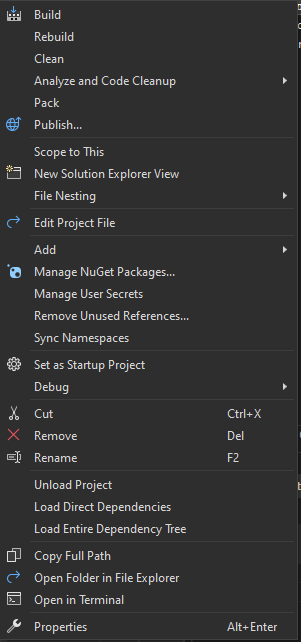
Click Manage NuGet Packages... to open a tab that looks like this:
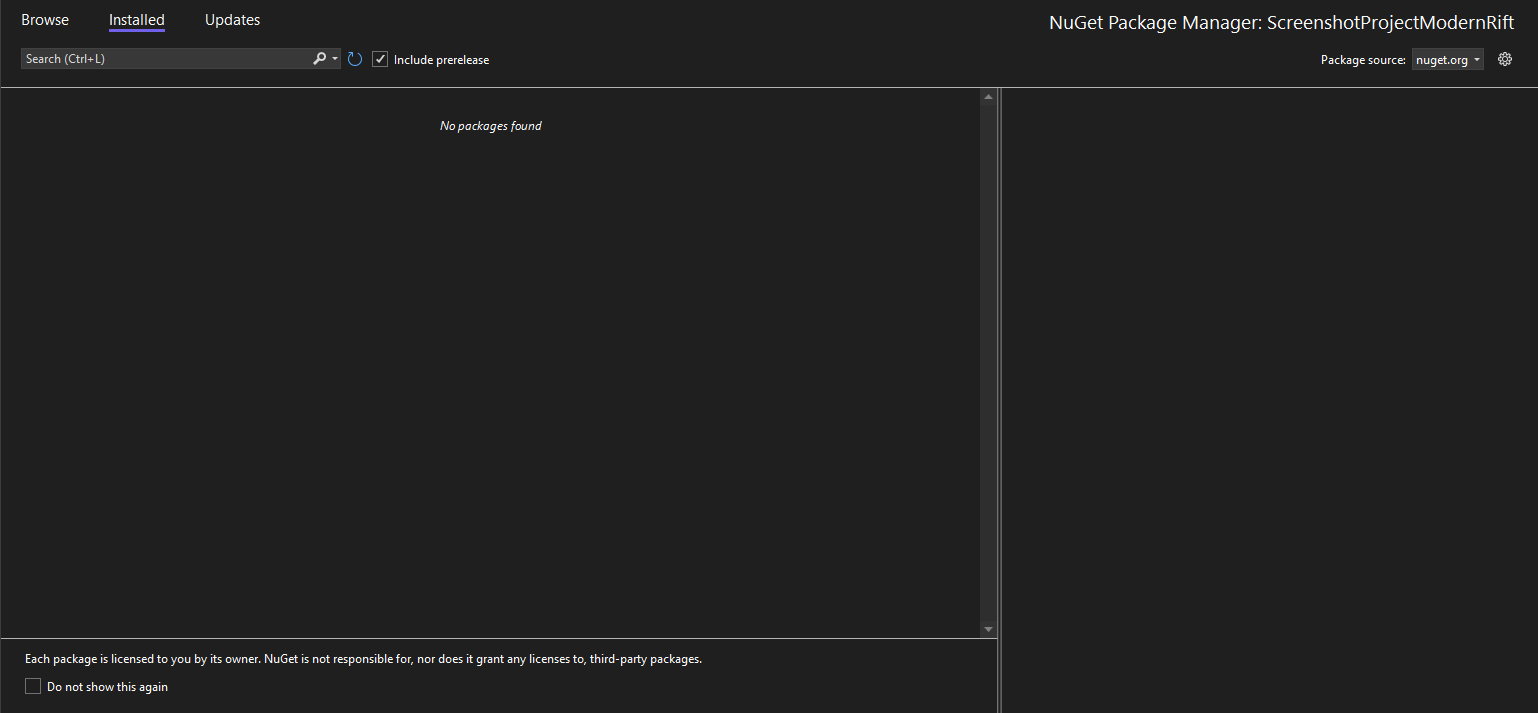
Up at the top right, click the little gear icon. This will open a new window titled Options, with the Package Sources tab open.
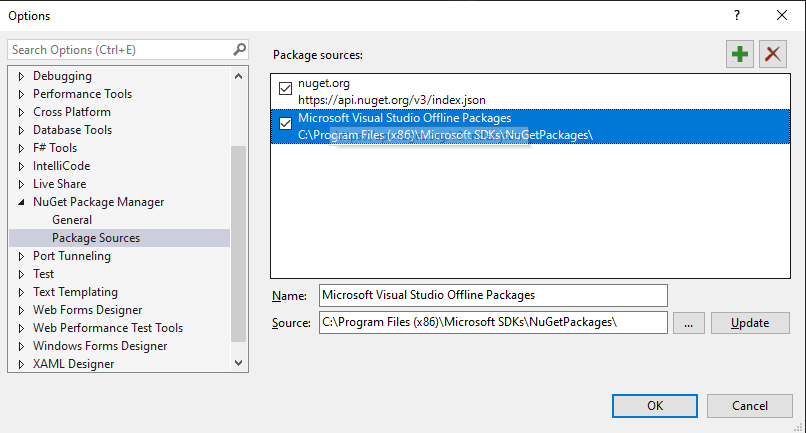
In the top menu bar, press the green plus icon. This will create a new package source.
In the Name field of the package source, type in ModernRift. Next to the source field, click the ... button and select your desktop folder (or whichever folder you downloaded the .nupkg file to).
Now, click Update, then OK.
Great! You've added your desktop as a NuGet package source! This means that any .nupkg files on your desktop will show up in Visual Studio.
But...
They aren't there!
In the top right, do you see the dropdown that says nuget.org?

Click the dropdown, and select ModernRift. Finally, go to the Browse tab, make sure Include prereleases is checked, and press the refresh button.
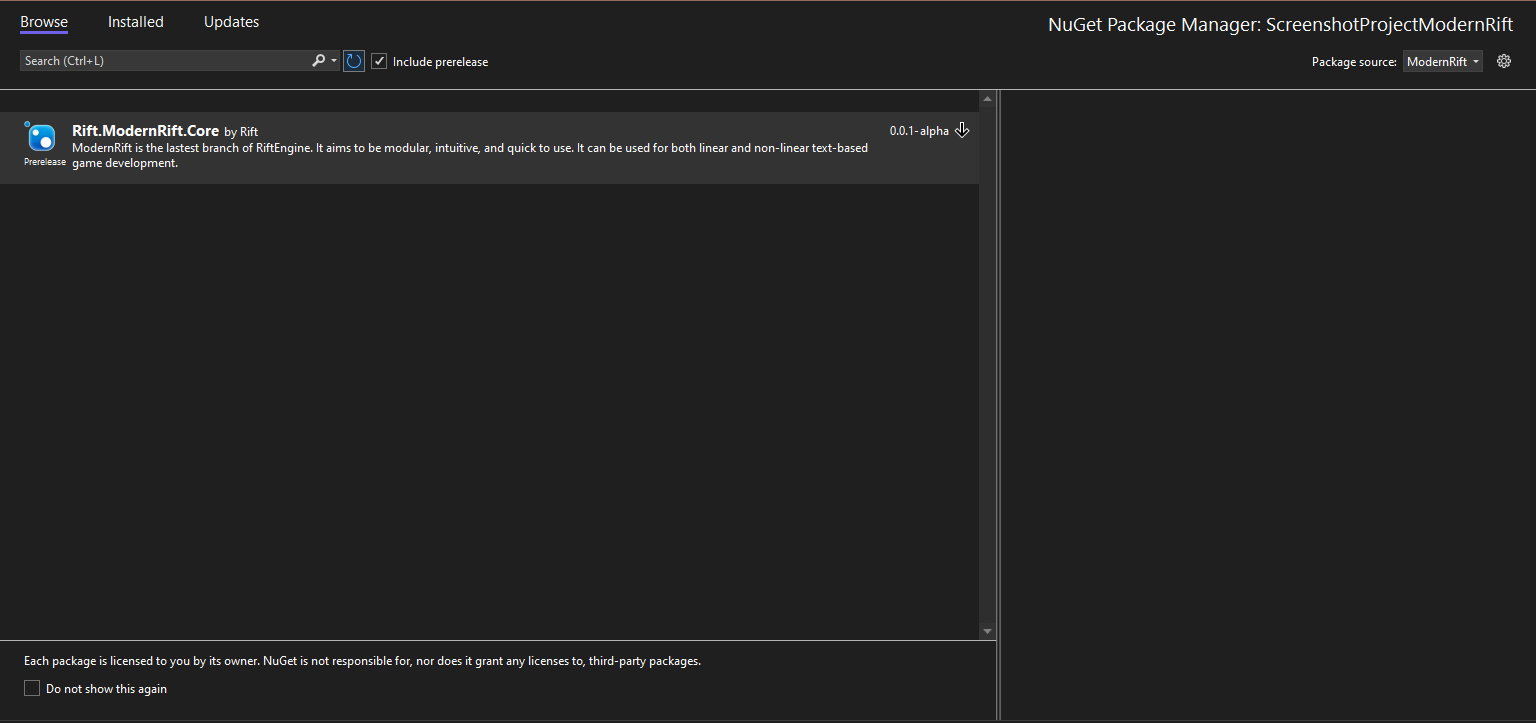
Excellent! Select Rift.ModernRift.Core and then click Install. You will see a prompt asking you to accept the license agreement. Nobody ever reads those, so just pretend you did by clicking I Accept.
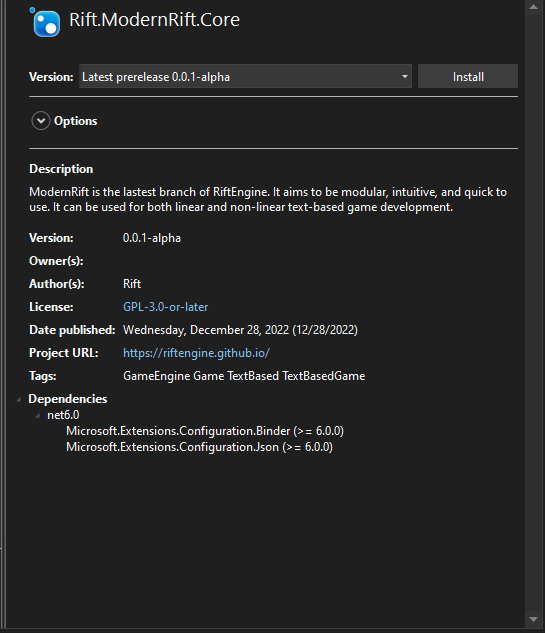
That's it! You're done with installing ModernRift! That wasn't too hard, was it?