
A tiling window manager for Logseq's right sidebar.
Open multiple pages side-by-side with tabs, keyboard-driven navigation,
drag-and-drop reordering, resizable panes, and project workspaces.
Installation • Features • Shortcuts • Workflow • FAQ


To understand a complex problem, idea, or concept you need to understand its small pieces. To understand how to build a rocket, you need to understand every part of it. We take a system or concept and pull it downwards to the point of irreducibility — bullet points, Zettelkasten, atomic notes are perfect for that.
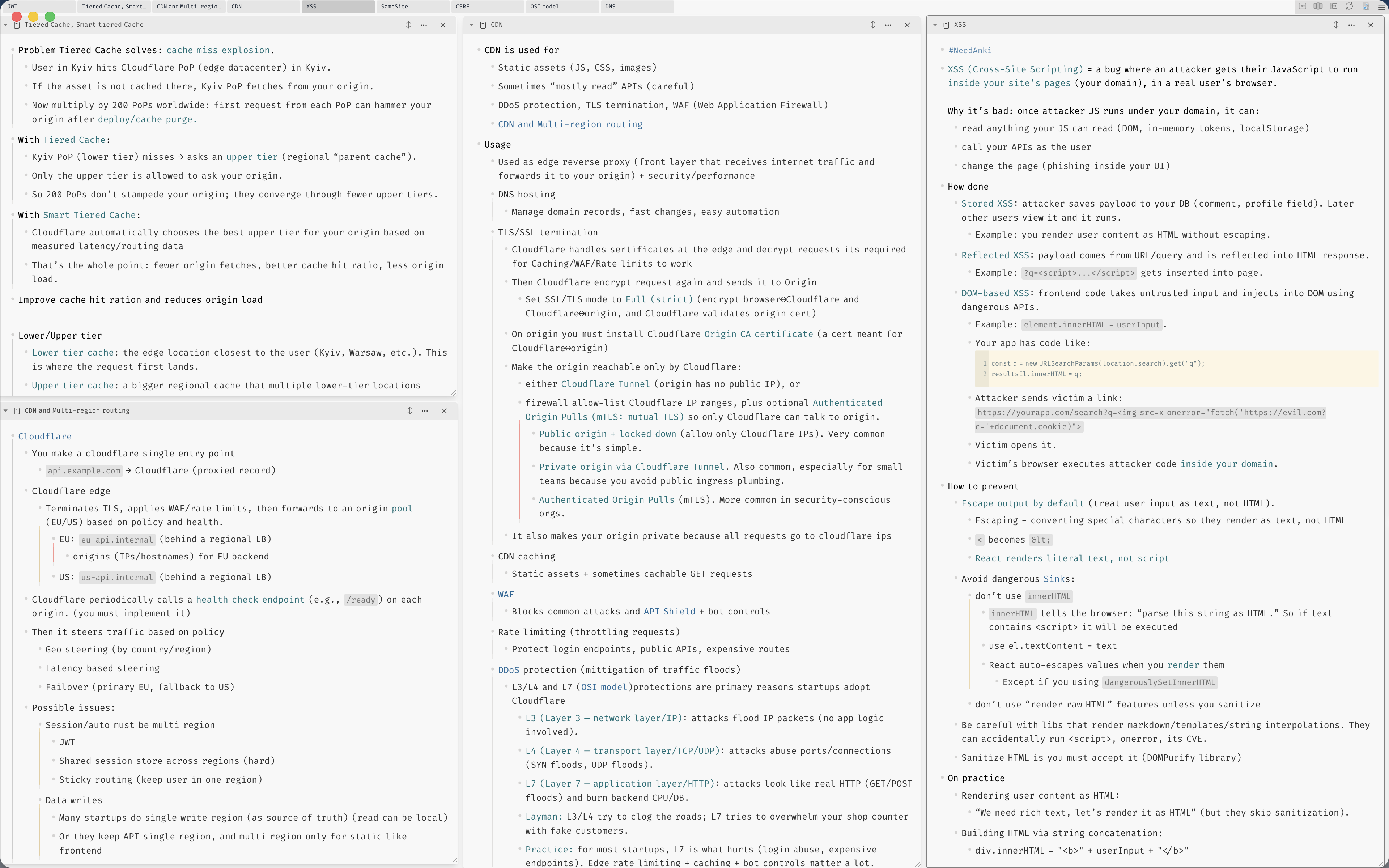
Panes mode allows you to manipulate these small pieces in wiki-style easily and see the big picture / find connections between panes to understand complex ideas.
In the LLM world we are dealing with more and more information every day, more and more abstractions. We need tools to see and operate more information at the same time and keeping track on details.
Logseq current UI is great at outlining but not perfect for further work with data. What's the point of outlining if you can't work with your outlined data?
- Break down the problem — Open an LLM, ask it to divide a complex problem into parts. Create tasks for those parts.
- Dive into each part — Start asking the LLM about individual parts. Create a pane for each part, write down important details and your understanding of it. Each individual part will require more panes for its smaller components. Create Anki cards when you understand pane and use Anki Sync.
Video illustration (click on image to go youtube):
| Feature | Description |
|---|---|
| Tabbed sidebar | Horizontal or vertical tab bar for all open panes |
| Keyboard-first navigation | Switch, reorder, close, resize, collapse, and scroll panes without touching the mouse |
| Pane resizing | Drag handles at the bottom-right of panes |
| Drag-and-drop reordering | Rearrange panes by dragging the pane header |
| Pane switcher | Fuzzy-search modal to jump to any open pane (Cmd/Ctrl+S) |
| Projects | Save and restore sets of panes as named workspaces (Cmd/Ctrl+Shift+S) |
| Auto "More..." | Automatically expands "More..." in panes so you never have to click it anyMore |
| Extensive UI/behaviour settings | Select colors and behaviour of new UI |
| Shortcut | Action |
|---|---|
Shift+Scroll |
Horizontal scrolling |
Cmd/Ctrl+Shift+Y |
Toggle Panes Mode |
Cmd/Ctrl+E |
Next pane |
Cmd/Ctrl+Q |
Previous pane |
Cmd/Ctrl+W |
Close current pane |
Cmd/Ctrl+T |
Toggle pane collapse |
Cmd/Ctrl+Shift+H |
Move pane left |
Cmd/Ctrl+Shift+L |
Move pane right |
Cmd/Ctrl+S |
Pane switcher |
Cmd/Ctrl+Shift+S |
Projects |
Cmd/Ctrl+Shift+B |
Toggle tabs visibility |
Cmd/Ctrl+Shift+M |
Toggle multi-column (pane must be wide enough) |
Cmd/Ctrl+Arrow Up/Down |
Scroll active pane |
Cmd/Ctrl+Shift+Arrow Left/Right |
Resize active pane |
Cmd/Ctrl+G |
Jump to bottom of pane |
Cmd/Ctrl+U |
Jump to top of pane |
Cmd/Ctrl+Shift+D |
Focus text in active pane |
Cmd/Ctrl+J / Cmd/Ctrl+K |
Navigate native/plugin search/selector |
Cmd/Ctrl+1-9 |
Jump to pane by number |
- IMPORTANT — To scroll horizontaly use Shift + Mouse wheel. It works in any app.
- New pane placement — Every new pane opens to the right of the current active/selected one, same for opening existing panes.
- Persistent layout — Size, order, collapse of panes is stored in localStorage and logseq plugin storage and restored when toggling on/off. There are 2 panes size modes: "Fit content" (toggled by the arrow left of the close icon) and manual resize with the right bottom edge handle. Both are saved.
- Projects (
Cmd/Ctrl+Shift+S) — Save and restore which panes are open, their order, size, and collapsed state. When you're deep into a project but need to switch to another subject/research, save the current panes state in a Project and restore it when needed. - Max panes / Clean unused panes — Max panes is mostly useful for the "Clean unused panes" button. It removes every pane except the last N (max panes number in settings) active panes. Click it when things start to feel laggy. When auto-close is ON (off by default), the plugin will auto-close panes until the max-panes number remains.
- Styles from video - Here. Dark mode details setted up in plugin settings.
- No bloated dependencies — All pure TypeScript, no millions of unchecked node modules.
- No network requests — Your anime watchlist is safe.
- Not touching your data — The plugin only makes UI changes, it never touches your notes or graph data.
- Open Logseq
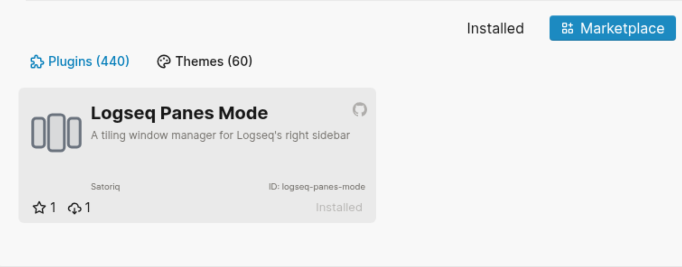
- Go to Settings > Plugins > Marketplace
- Search for Logseq Panes Mode
- Click Install
- Download the latest release from the Releases page, download package.zip
- Unzip to a folder
- In Logseq, go to Settings > Plugins
- Click Load unpacked plugin and select the release folder
npm install
npm run dev
npm run buildDoes it support DB version? Yes
Known issues:
- It's an MVP with a new UI concept — Expect bugs. Most are solved by the "Sync panes order" action button or toggling the plugin off and on.
- Cursor disappears after editing without changing file state — Desync between custom UI and Logseq page state. Reopen the page or restart Logseq.
At least 70% of the code is written by agents, only core parts by flesh being. If something looks like unreadable slop, most likely it is — don't overthink it. Feel free to use agents on top, but no more than 512 lines of slop per PR and testing is on you first.