Configuration
# Enviroment Variables
Enviroment variables can be set in the enviroment: section of your docker-compose file. CWA has a number of available enviroment variables that can be used to change it's default behaviour, to tailor it to your specific usecase/ deployment and/or to add or remove functionality:
| ENV Variable | Function | |
|---|---|---|
TZ |
DEFAULT:UTC (optional) |
Set this to match your current timezone |
CWA_PORT_OVERRIDE |
DEFAULT:8083 (optional) |
Sets the listening port for the application. Remember to update the ports mapping in your docker-compose file if you change this. Please note that ports below 1024 are privileged and may require running the container with elevated permissions (e.g., by adding cap_add: - NET_BIND_SERVICE to your compose file). |
HARDCOVER_TOKEN |
DEFAULT:None (optional) |
Add the Hardcover API Key you want to use for Metadata Fetching here |
NETWORK_SHARE_MODE |
DEFAULT:False (optional) |
On network shares (NFS/SMB), filesystem events can be unreliable or unavailable. When NETWORK_SHARE_MODE=true is set, CWA switches the ingest and metadata watcher services to a polling-based watcher that periodically scans for changes. This improves reliability on NAS/network mounts at the cost of slightly higher I/O and up to a few seconds of latency |
CWA_WATCH_MODE |
DEFAULT:inotify (optional) |
On Docker Desktop (Windows/macOS), the container runs on a LinuxKit/WSL2 VM and host-mounted paths may not propagate inotify events reliably. CWA auto-detects Docker Desktop at startup and prefers the same polling watcher for reliability. - Advanced: You can also force polling regardless of share mode by setting CWA_WATCH_MODE=poll
|
DISABLE_LIBRARY_AUTOMOUNT |
DEFAULT:False (optional) |
Skip the automatic library detection/mount at startup. When enabled, the auto-library service will not run. |
SMTP_ALLOW_UNVERIFIED_SSL |
DEFAULT:False (optional) |
Set to True or 1 to disable strict SSL verification for SMTP servers. This is useful if your mail server uses self-signed certificates or if you are in a development environment. |
The configuration can be changed as admin in the admin panel under Basic Configuration and UI Configuration
-
The location of a valid
metadata.db. Unlike in stock Calibre-Web, the linking, creation & management of your Calibre database is largely automated:
-
If you don't have an existing
metadata.dbfrom a previous Calibre instance, CWA will automatically create one for you in the directory you bound to/calibre-libraryin your docker-compose.
-
If you have an existing Calibre Library and it's corresponding
metadata.dbfile is within the dir bound to/calibre-library, CWA will detect and mount it automatically upon container start up.
- If there are multiple existing
metadata.dbfiles in the/calibre-librarydir, CWA will automatically mount the largest of those libraries - CWA doesn't currently support switching between multiple libraries but this functionality is planned for future versions
-
Separate Book Files from Library This is if you want to have your
metadata.dbin a different location from the library files, essential for when using a network mounted library location. When selected choose where the.epubfiles are stored.
Note:metadata.dbmust be in/calibre-librarythe new location can be whatever path is passed to the container where the.epubfiles are stored - Use Google Drive? The further configuration steps for the G Drive integration are described here
Changes the port Calibre-Web Automated is listening, changes take effect after pressing submit button. To reach the Calibre-Web Automated instance afterwards you have to change the port manually in your browser, otherwise you see an endless "spinning wheel"
For configuration of Calibre-Web Automated as SSL Server go to the Config page in the Admin section. Enter the certfile- and keyfile-location, optionally change port to 443 and press submit. Afterwards the server can only be accessed via SSL. In case of a miss configuration (wrong/invalid files) both files can be overridden via command line options -c [certfile location] -k [keyfile location] By using "" as certfile/keyfile locations the server runs as non SSL server again. The correct file path can be entered on the config page afterwards. After the next restart without command line options the changed file paths are applied.
If you want to self-host calibre-web securely on a remote host, you must not let it listen to 0.0.0.0 and you must use TLS/SSL.
The best way to do this is via either an Nginx (best) or Apache reverse-proxy in conjunction with Let's Encrypt immediately after you have set up the virtualhost, before you add the reverse proxy location blocks.
For the virtual host configurations for both Nginx and Apache, see these gists:
- Optimized Calibre-Web Nginx reverse proxy config
- Optimized Calibre-Web Apache reverse proxy virtual host
Just replace read.your.site with the actual subdomain of your website. Subdirectories may work, but it hasn't been tested.
The options here don't change anything when run as a docker container and are a holdover from Calibre-Web and running as a native application with a systemd service
Enter additional trusted hosts as comma separated list in this field. Additional hosts are needed for e.g. third party theming. Otherwise just lease the field empty
You can set the loglevel of the integrated logfiles. Default is INFO, which is recommended for normal day use. DEBUG gives you more information, especially during converting books and sending e-mails. WARNING and ERROR are less noisy as all other settings and create almost no entries. The logfiles are rotating automatically after 10kbytes of logged information are reached. The last two versions are backed up.
You can specify a different name and different location for the logfile. logfile.log creates a logfile with this name in the Calibre-Web Automated config folder (/config inside the container). Please make sure Calibre-Web Automated has write access to the folder you bind to /config.
You can use "/dev/stderr" to log to standard-error or "/dev/stdout" to log to the standard output.
If activated Calibre-Web Automated logs every request to the server in a separate file (access.log per default). The path and name of the file can be changed with the same rules as mentioned in Location and name of Logfile
In the default behavior Calibre-Web Automated converts all title and author names for saving to disk to their phonetic ASCII representation. To avoid this (especially for CJK-Languages) and keep the unicode characters uncheck this setting.
Tick this to embed all metadata into the .epub files for ebooks when doing a conversion, download, Kobo Sync, or email to Kindle/other e-reader.
This ensures that the Title, Author, Series, Description, Tags, Cover Art, etc. that is set in CWA is also shown on the downloaded file and will be present no matter where the file is read.
Enable Full Text Search indexing to search inside book content, not just titles and authors. When enabled, Calibre indexes the text content of your books in the background using its FTS5 engine.
Basic Configuration vs. CWA Settings:
- Basic Configuration page: Simple checkbox to enable/disable FTS
- CWA Settings page: Advanced FTS management with live status monitoring, progress tracking, and control buttons
Advanced Management (CWA Settings page): The CWA Settings page provides comprehensive FTS control:
- Real-time status: Shows current indexing state (Active/Disabled/Error)
- Progress tracking: Displays "X of Y books indexed (Z%)" with live updates every 10 seconds
- 90% threshold: Search becomes active once ≥90% of library is indexed (shown with ✅/❌ indicator)
-
Action buttons:
- Enable FTS: Starts background indexing process
-
Disable FTS: Stops indexing (
⚠️ requires complete re-indexing on re-enable) - Reindex All: Forces re-indexing of entire library
- Refresh Status: Manual status update
Performance Characteristics:
- CPU: Moderate usage for text extraction and tokenization
- Disk I/O: Heavy - reads every book file sequentially
- Memory: Low - processes one book at a time
- Network I/O: Can be significant for large files on NFS/SMB shares
For Large Libraries (10,000+ books): Initial indexing may take hours to days depending on:
- Book file sizes (PDFs are slower than EPUBs)
- Disk/network speed
- CPU speed
Important Notes:
⚠️ Disabling FTS invalidates the index - Re-enabling requires complete re-indexing from 0. This is Calibre's design to ensure index consistency, not a CWA limitation.- ✅ Background process - Indexing doesn't block CWA. Your library remains fully usable during indexing.
- 📊 Network shares - Indexing on NFS/SMB mounts is slower due to network I/O latency.
- 🔍 Fallback behavior - Until 90% indexed, standard (non-FTS) search is used automatically.
Supported Book Formats for Indexing: EPUB, MOBI, AZW, AZW3, PDF, TXT, HTML, FB2, DOCX, ODT, RTF, and more (28+ formats supported by Calibre)
Tick to enable uploading of PDF, kepub, epub, FB2, TXT, Mobi, AZW, AZW3, HTML, RTF, ODT, DJVU, PRC, DOC, DOCX, MP3, M4A, M4B, CBR, CBZ, and CBT files. The allowed file formats can be changed by editing the Allowed Upload Fileformats list. If imagemagick library is installed, covers can be extracted from some (PDF, epub, CBT, CBZ) of the uploaded file formats. With installed rarfile covers from cbr files can be extracted also. If a language viewing restriction is applied while uploading the book, book language is automatically set to this language to allow the user to view the recently uploaded book. Books can also be uploaded using drag and drop. Just drag your files to the main area of Calibre-Web Automated, the shelf order page is excluded, all other pages work. Uploading more than one file at a time is also possible.
Tick to allow not logged-in users to browse the catalogue, anonymous user permissions can be changed as admin (showing up as "Guest" user in admin section)
Tick to enable public user registration. Users can then register with the Calibre-Web Automated instance on their own with a valid email address. In the SMTP Server section valid domains for registrations can be limited. If the additional setting "Use E-Mail as Username" is set, users can not choose their own username, the e-mail address is taken as username. Prerequisites: The SMTP Server setup has to be completed.
Tick to enable remote login, i.e. a link that allows user to log in via a different device.
The remote login feature was made for devices where it is hard to enter a lot of text, like on ebook readers. After enabling this feature you see the Magic Link, link, on the login page:
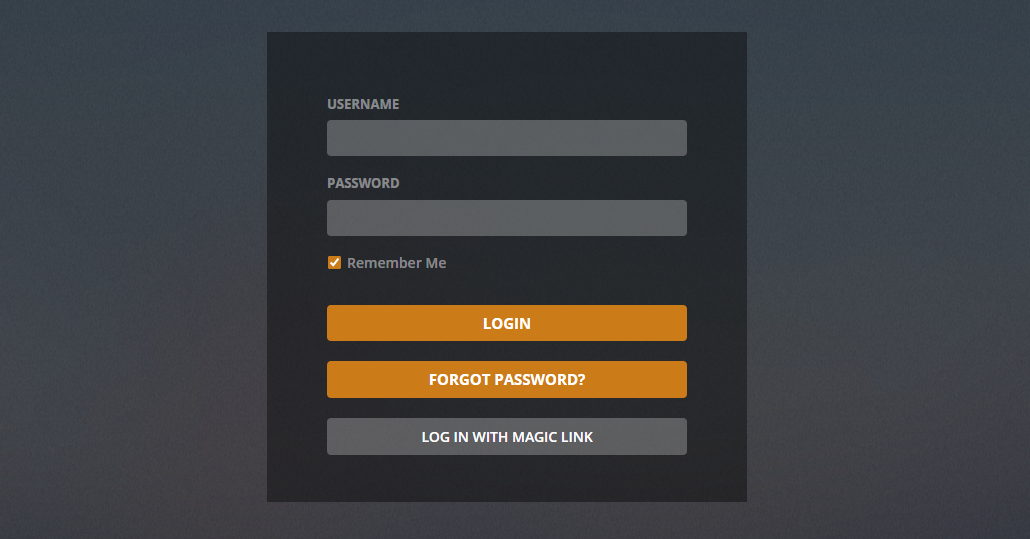
On your ebook reader (or any other device you want to get logged in) you click on Magic Link. Afterwards you log in on you desktop computer with the account you want to get logged in on the reader and afterwards you enter the generated magic link (visible on your ebook reader) in the desktop computer. Magically after one or two seconds you are logged in on the ebook reader, too.
Calibre-Web Automated also adds QR Code functionality on the Magic Link Page!
It's possible to sync your kobo reader with Calibre-Web Automated. Configuration details are described here.
This menu only shows up if the optional dependencies "goodreads" and "python-Levenshtein" are installed.
You need to have an API key with goodreads (www.goodreads.com) to use the feature.
Currently, showing authors information are supported (view books by author).
Goodreads no longer allows to create new api tokens. The service will probably be discontinued sooner or later, so this feature will not be expanded.\
This allows the Kobo Sync to send the reading progress of synced books to your Hardcover.app account.
The Hardcover API Key below should be the same as the one used in the HARDCOVER_TOKEN in the docker-compose.yml
Once selected the Sync Kobo read progress to Hardcover (Requires API key per user) appears under the Enable Kobo Sync option
If you're using this feature, it's assumed that there's no access to the Calibre-Web Automated service without going through the proxy responsible for setting the headers, as it allows for unchallenged login (i.e., it assumes the login challenge happens upstream, in some SSO flow). Don't use this setting for "normal" proxying applications.
NEW: CWA now supports automatic user creation from reverse proxy authentication. When Auto-create users from reverse proxy is enabled, users authenticated by trusted reverse proxies will automatically get accounts created with default permissions. This is ideal for SSO environments with systems like Authelia, Authentik, or Traefik ForwardAuth.
For detailed setup instructions, see: Reverse Proxy Authentication Setup Guide
NEW: CWA now features enhanced LDAP authentication with automatic user creation capabilities. When Auto-create users from LDAP is enabled (default), users authenticated by your LDAP server will automatically get accounts created with default permissions. This provides seamless enterprise integration.
For comprehensive LDAP configuration instructions, see: LDAP Authentication Configuration Guide
CWA uses Calibre's CLI tools to perform many of it's functions. Unlike with stock Calibre-Web, Calibre and it's binaries are included with Calibre-Web Automated, meaning you never need to touch this setting.
If it is unpopulated make sure it is set to /usr/bin
This is fine left blank, however if you are noticing issues with converting between file types check the Calibre ebook-convert documentation for the flags to add that fix the issues you are having
Just like the Calibre binaries, the Kepubify binaries are also included with Calibre-Web Automated and don't need to be added manually.
If it is unpopulated make sure it is set to /usr/bin/kepubify
Just like the Calibre binaries, the unrar binaries are also included with Calibre-Web Automated and don't need to be added manually.
If it is unpopulated make sure it is set to /usr/bin/unrar
This requires another tool that monitors login attempts and locks accounts that have failed often, see OAuth-Configuration
This will check the files uploaded to ensure their mime type matches the extension epub for .epub etc.
If it doesn't match it will drop the file rather than ingest it.
Can select Strong or Basic
If enabled will enforce requirements for user's passwords in additional options that appear
Here you can set the minimum length, and which characters are required

The title of the instance of Calibre-Web Automated can be changed (useful if you are having more than on instance running). The name is shown in the upper left corner of the web page. (Calibre-Web Automated by default)
Limits the number of book covers shown on one page (and the number of books loading during the infinite scrolling mode). To prevent the infinite scrolling mode set the "Books per page" to a number displayed on one page in your browser. In this case you will see pagination information on the top of the page.
Supported options: positive integer between 1 and 200
Limits the number of books showing up in the random books section. To deactivate the feature untick the "Show random books in detail view" on the user's settings page.
Supported options: positive integer between 1 and 200
If books having many authors, cover view pages can be very confusing. Therefore, it's possible to limit the number of authors shown in this case. Entering a zero deactivates this feature and all authors are shown.
Currently Calibre-Web Automated supports two theme, the Standard dark Caliblur! Plex-like theme, and the classic stock Calibre-Web light one.
If using Theme-Park theming this must be set to Caliblur! Dark Theme to take effect
If you're having a Boolean custom column in Calibre you can use it as a "global" read/unread status (only useful in single user environments) In this case you can select this column in the Link read status. After saving the Read/Unread selection on each book is read from this column and also saved to this field in the calibre-database. Furthermore you should Enter this column name to the "Regular expression for ignoring columns", so the column isn't showing up twice in Calibre-Web Automated.
Example: .\* would exclude all custom columns, Read only the column with the name column, ^My\scol.\* all Columns starting with My col.
The filtering is based on the columns name (headline in German Calibre) and not the column lookup
For a Calibre-Web Automated multi-user use case, please leave this field empty. In this case Calibre-Web Automated stores the read status in it's own database.
In a single user Calibre installation you can use a Boolean custom column to keep track of your read and unread books. Calibre-Web Automated can do the following. You can link the Calibre status to the read/unread status in Calibre-Web Automated. As mentioned above this only works in a SINGLE USER use-case. If you are having more than one user in Calibre-Web Automated this will cause trouble, because the read/unread status is used for all users, so if one user ticks a book as read, all users will see this book as read. In a multi user Calibre-Web Automated use case it's absolutely mandatory not to use this feature.
How to use the feature?
- Open Calibre (the Desktop program) and create a Boolean custom column name it accordingly (e.g. Read Status)
- Calibre will ask you for a restart to apply the change. Afterwards please close Calibre
- For safety reasons it's recommended to restart Calibre-Web Automated
- Log in to Calibre-Web Automated as admin and go to Admin->UI configuration->View Configuration
- The field "Link read/unread status to Calibre column" should now offer a selection of all Boolean custom columns of the corresponding Calibre library, select the appropriate entry and save The read/unread status is now identical in Calibre and Calibre-Web Automated
You can add restrictions based on Custom Columns if you want to hide certain books from some users (like your kids). In this setting you define the Custom Column where the restriction shall be based on. If you see None as only option, you have no text content Custom Columns in your Calibre Lib.
The restrictions are on per user base, to change the restrictions of existing users, go to edit user and than you can edit the restrictions for this specific user.
Calibre stores internally the title and a "sorted title". Title often starting with articles like "A" in English, or "Die/Der/Das" in German, which make no sense to sort after, therefore all of the listed words in these field are ignored for sorting the title. The default is taken from a German Calibre program. For french it should be something like "^(Le|La)\s"
The options selected in this section define the access rights and visibility new users having upon registering, and the default settings for newly created users by the admin (can be changed during initial creation, or later by admins).
The visibility (except Visibility Restriction settings) can be changed by the users themselves later on. The Guest user (User for anonymous access) is an except from this, only admins can change the visibility for the Guest user.
To allow users to sync to Kobo or read on an OPDS reader ensure Allow Downloads is selected
To allow users to read in the web UI ensure Allow eBook Viewer is selected
You can allow and deny the visibility of books based on the content of the Custom Column selected by View Restriction based on Calibre Custom Column setting. You can define a default Visibility in the Default Visibility for New Users section. Admins can change their own visibility restrictions on their own user settings page. Allowed column types are "Text, column shown in the Tag Browser" and "Comma separated text" You can restrict the visibility to only certain entries in this column (like user is only allowed to view books with entry "Kids") by allowing this Column entry, or exclude certain entries (like user is not allowed to view books with entry "Adult"). Allowing and denying content based on Custom Columns can be combined and can also be combined with restricts based on tags.
You can allow and deny the visibility of books based on tags. You can define a default Visibility based on tags in the Default Visibility for New Users section. Admins can change their own visibility restrictions on their own user settings page. You can restrict the visibility to only certain tags (like user is only allowed to view books tagged as "kid") by allowing this tag, or exclude books with certain tags (like user is not allowed to view books with tag "Adult"). Allowing and denying content based on Custom Columns can be combined and can also be combined with restricts based on tags.
The integrated eBook viewer is available for pdf, epub, djvu, txt and cbr, cbz and cbt files. The option is showing up if user has the right to View Ebooks. If you are upgrading from older versions, it might be possible that the admin user lost the right to download or view books.