
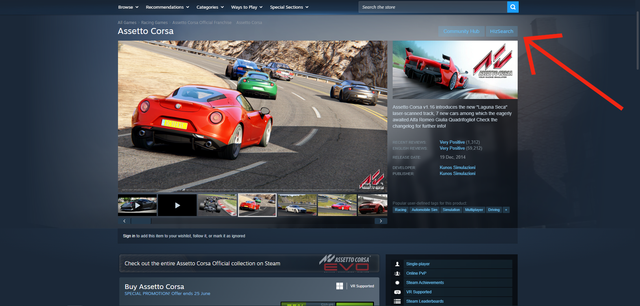
Search for any Steam game on HizSearch (a game search engine) with just one click. It works on both the Steam Store and SteamDB.
Since Steam runs on Chromium, you can install Chrome extensions directly inside it.
- Download the latest extension zip and extract it.
- While browsing Steam, middle-click any game to open a new tab.
- In the address bar, enter
chrome://extensionsand press Enter. - Turn on Developer mode (top-right toggle).
- Drag and drop the extracted folder onto the extensions page.
- Click Details → Extension options to configure position, icon and more.
- Done.
Important
If you're having trouble dragging and dropping the folder in step 5, you can follow these steps provided by @thesaguaro to fix the issue:
After middle clicking random game and opening the chrome://extensions tab in steam browser, click the Chrome Web Store button (its on the left under the Keyboard Shortcuts). Then download and install (Add to Chrome button) any extension (i recommend installing uBlock Origin Lite). Click save in the file manager pop-up (if it asks you to). You might now notice that a new window (tab) opened that looks exactly like the default new chromium tab, where it will say that the extension you just downloaded has been added to chromium. Now, in that new tab, go to chrome://extensions and you should be able to drag and drop the zip or crx file that will install the plugin.
Note
If you're having issues with the Cloudflare Challenge that aren't resolved by refreshing the page, try closing Steam completely and reopening it.
https://github.com/hiz0147/HizSearch-Millennium
- Download the latest extension zip and extract it.
- Open
chrome://extensions. - Turn on Developer mode (top-right toggle).
- Click Load unpacked and select the extracted folder.
- The button will appear on Steam Store and SteamDB app pages.
- Click the extension icon in your toolbar to configure position, icon and behavior.
- Install Violentmonkey, ScriptCat or Tampermonkey.
- Click this link — the extension will ask you to install it. Enable auto-update if prompted.
- To configure the button, right-click the user script manager icon and → Configure HizSearch. A settings modal lets you choose position, icon visibility and new-tab behavior.


Suggestions and contributions are welcome. Feel free to open an issue or submit a pull request.