⚠️ ARCHIVED: Discord has decommissioned the Active Developer Badge program. This project is no longer functional. Learn more
A Discord bot with slash commands built to help you earn the Discord Active Developer badge.
- 2 Slash Commands:
/ping- Check bot latency and response time/userinfo- Display detailed user information
- Simple code structure with extensive comments
- Error handling and logging
- Environment-based configuration
- Compatible with Node.js v22.21.0
- Node.js v22.21.0 or higher
- npm 10.9.4 or higher
- Discord account
- Discord server where you have admin permissions
- Go to Discord Developer Portal
- Click "New Application"
- Give it a name and click "Create"
- Go to the "Bot" section in the left sidebar
- Click "Reset Token" and copy your bot token (save it for later)
- Scroll down and enable these Privileged Gateway Intents:
- ✅ Server Members Intent (optional but recommended)
- Go to "General Information" and copy your "Application ID" (this is your CLIENT_ID)
- In Developer Portal, go to "OAuth2" > "URL Generator"
- Select these scopes:
- ✅
bot - ✅
applications.commands
- ✅
- Select these bot permissions:
- ✅ Send Messages
- ✅ Use Slash Commands
- Copy the generated URL at the bottom
- Paste it in your browser and invite the bot to your server
- Open Discord and enable Developer Mode:
- Settings > Advanced > Developer Mode (toggle ON)
- Right-click your server icon
- Click "Copy Server ID"
npm install- Rename
.env.exampleto.env - Open
.envand fill in your values:
DISCORD_TOKEN=your_bot_token_here
CLIENT_ID=your_client_id_here
GUILD_ID=your_server_id_here
Important:
- Never share your bot token with anyone
- Never commit
.envto version control
npm run deployThis registers your slash commands with Discord. For testing with GUILD_ID, commands are instant. Without GUILD_ID, global commands take up to 1 hour.
npm startYou should see a success message indicating the bot is online.
- Go to your Discord server
- Type
/in any channel - You should see your bot's commands appear
- Try
/pingand/userinfo
- Use any slash command in your server (at least once)
- Wait 24 hours
- Go to Discord Active Developer page
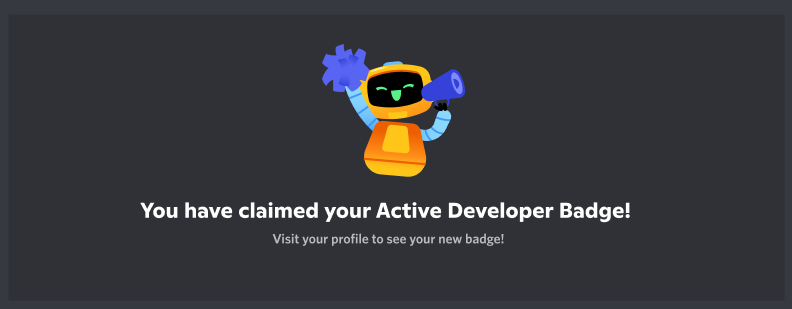
- Click "Claim Badge"

- Responds with "Pong!" and latency information
- Shows WebSocket ping and API latency
- Useful for checking if bot is responsive
- Displays information about the command user
- Shows username, ID, account creation date, join date, and more
- Includes avatar URL
- Make sure the bot is online (green status)
- Verify you ran
npm run deploy - Check if bot has necessary permissions in the channel
- Wait a few seconds after running
npm run deploy - If using global deployment (no GUILD_ID), wait up to 1 hour
- Try kicking and re-inviting the bot
- Verify your
.envfile has correct values - Check that DISCORD_TOKEN is valid (reset it if needed)
- Make sure you ran
npm install
- Your DISCORD_TOKEN is incorrect or expired
- Go to Discord Developer Portal and reset your token
- Update the token in your
.envfile
MIT
[!CAUTION]
This bot is designed for educational purposes and to help you earn the Discord Active Developer badge. Feel free to customize and expand it with more commands and features!